Xcode
Xcode is a free macOS-only IDE. You can download it from the Mac App Store.
Importing the project
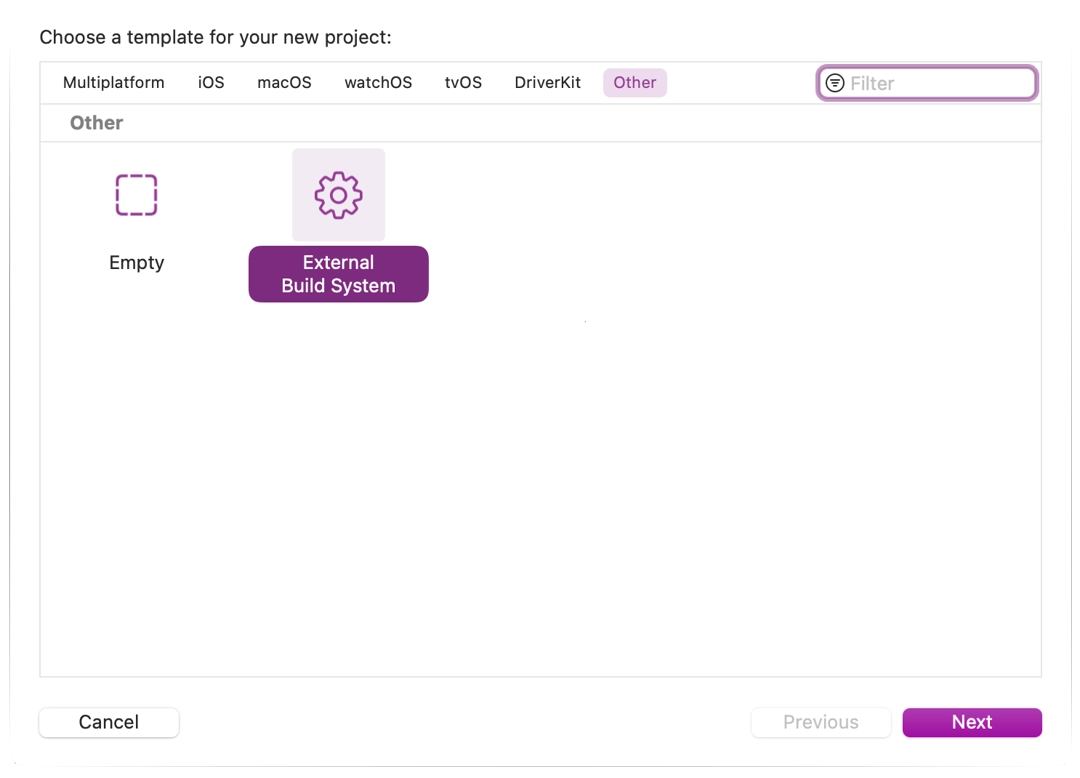
- From Xcode's main screen create a new project using the Other > External Build System template.
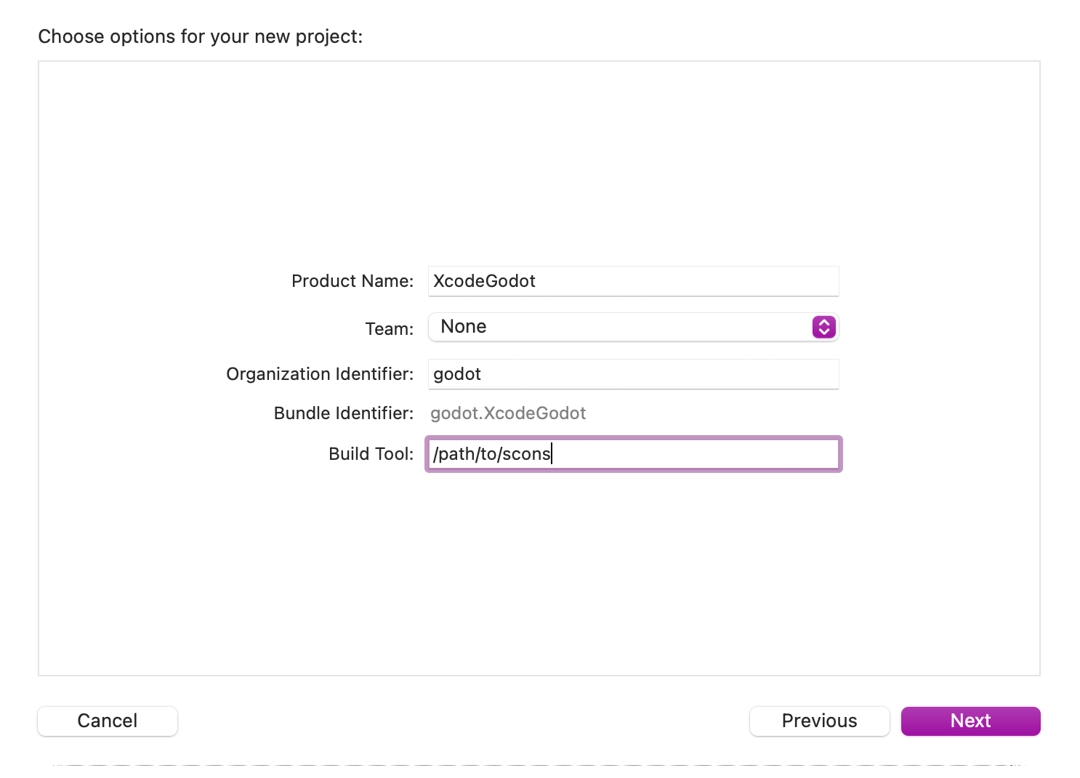
- Now choose a name for your project and set the path to scons executable in build tool (to find the path you can type
where sconsin a terminal).
- Open the main target from the Targets section and select the Info tab.
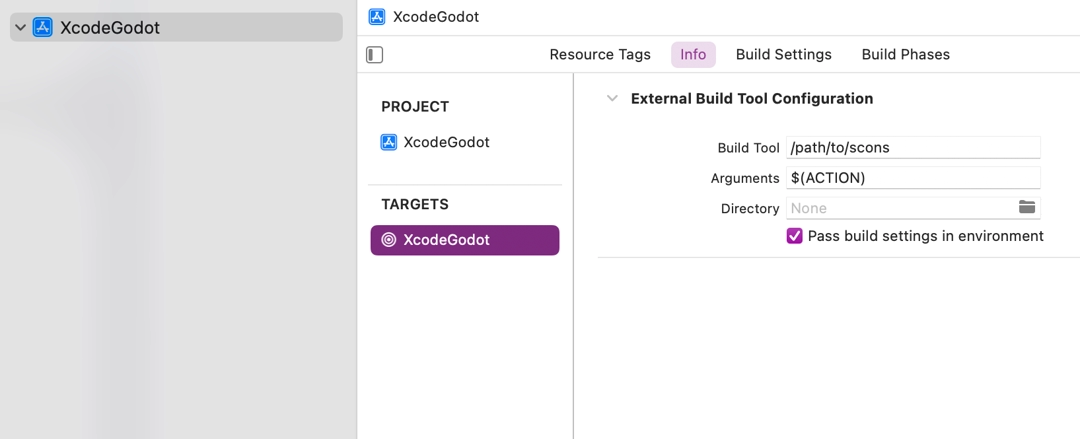
- Fill out the form with the following settings:
| Arguments | See doc_introduction_to_the_buildsystem for a full list of arguments. |
|---|---|
| Directory | A full path to the Redot root folder |
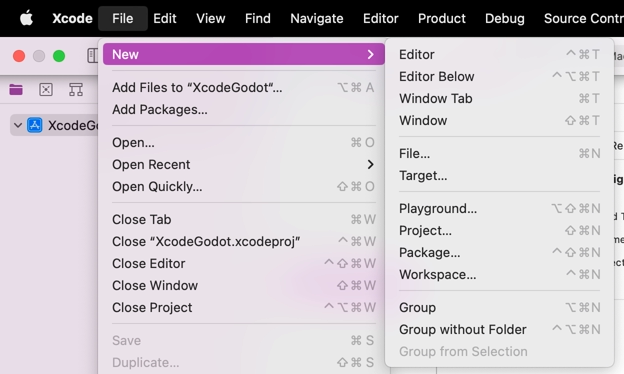
- Add a Command Line Tool target which will be used for indexing the project by choosing File > New > Target....
- Select macOS > Application > Command Line Tool.
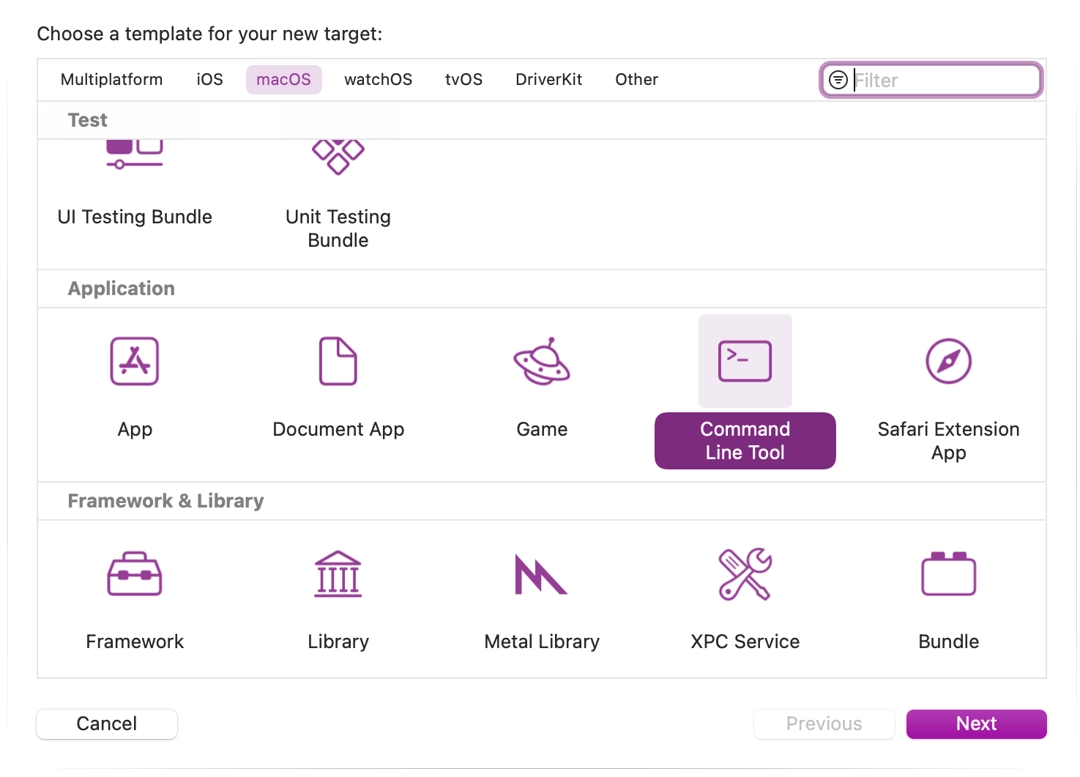
Name it something so you know not to compile with this target (e.g. RedotXcodeIndex).
-
For this target open the Build Settings tab and look for Header Search Paths.
-
Set Header Search Paths to the absolute path to the Redot root folder. You need to include subdirectories as well. To achieve that, add two two asterisks (
**) to the end of the path, e.g./Users/me/repos/Redot-source/**. -
Add the Redot source to the project by dragging and dropping it into the project file browser.
-
Select Create groups for the Added folders option and check only your command line indexing target in the Add to targets section.

- Xcode will now index the files. This may take a few minutes.
- Once Xcode is done indexing, you should have jump-to-definition, autocompletion, and full syntax highlighting.
Debugging the project
To enable debugging support you need to edit the external build target's build and run schemes.
- Open the scheme editor of the external build target.
- Locate the Build > Post Actions section.
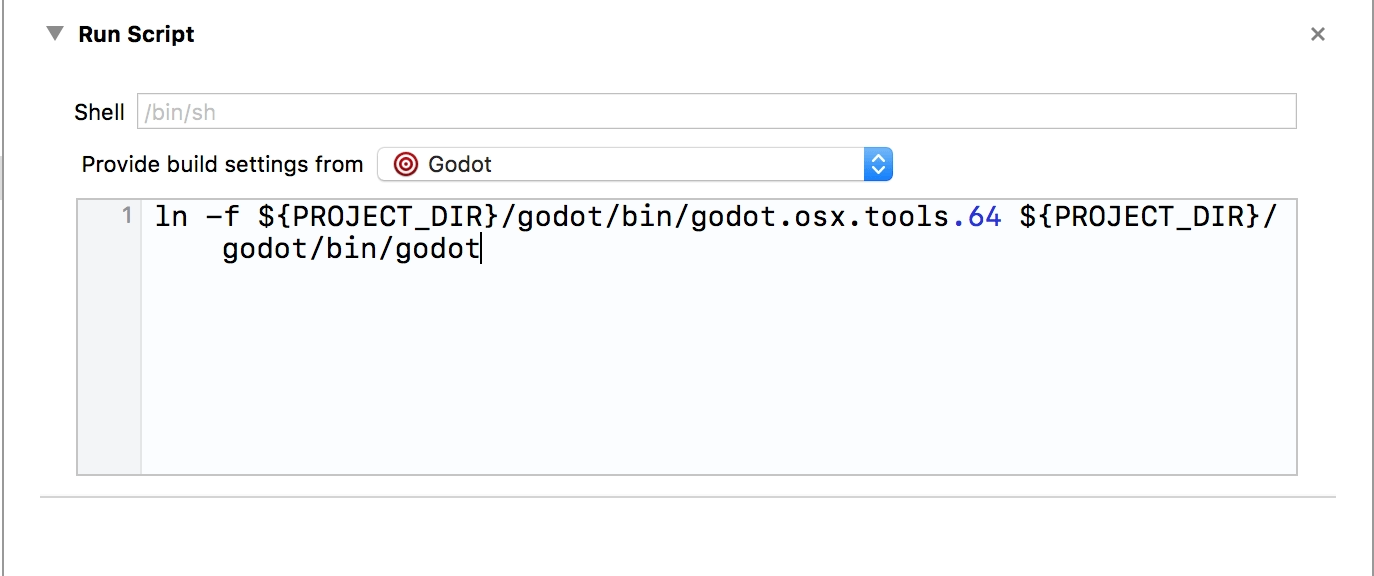
- Add a new script run action
- Under Provide build settings from select your project. This allows to reference the project directory within the script.
- Create a script that will give the binary a name that Xcode can recognize, e.g.:
ln -f ${PROJECT_DIR}/Redot/bin/Redot.macos.tools.64 ${PROJECT_DIR}/Redot/bin/Redot
-
Build the external build target.
-
Open the scheme editor again and select Run.
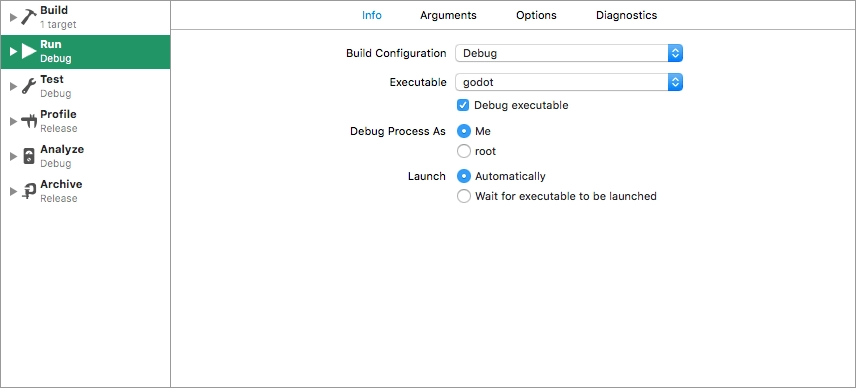
- Set the Executable to the file you linked in your post-build action script.
- Check Debug executable.
- You can add two arguments on the Arguments tab:
the
-eflag opens the editor instead of the Project Manager, and the--pathargument tells the executable to open the specified project (must be provided as an absolute path to the project root, not theproject.Redotfile).
To check that everything is working, put a breakpoint in platform/macos/Redot_main_macos.mm and
run the project.
If you run into any issues, ask for help in one of Redot's community channels.